Roles and permissions
Most trainers start out solo, but as your business grows you might bring in a second coach to cover classes, or an assistant who handles booking requests while you're with clients. Your team can have three roles, each with different levels of access:
- Owner — The person who created the business. Owners have full access to everything, can invite or remove team members, and manage billing. Only one person per business holds this role.
- Admin — Full access to all dashboards and settings, just like the owner. Can also invite new team members. This is the standard role for a trusted co-coach or assistant who manages bookings and coaches with you.
- Member — The schedule, and nothing else. A member sees the overview and works the shared booking inbox, but coaches and services are scoped: a member only manages the coaches an owner or admin has specifically assigned them to (see Assigning team members to a coach), and starts out assigned to none. They do not see payments, analytics, any client beyond one who booked with an assigned coach, the activity log or any settings, and they cannot invite or assign anyone themselves. Use this for reception working the coaches they're assigned to, or a coach who runs their own bookings without visibility into anyone else's revenue or client notes.
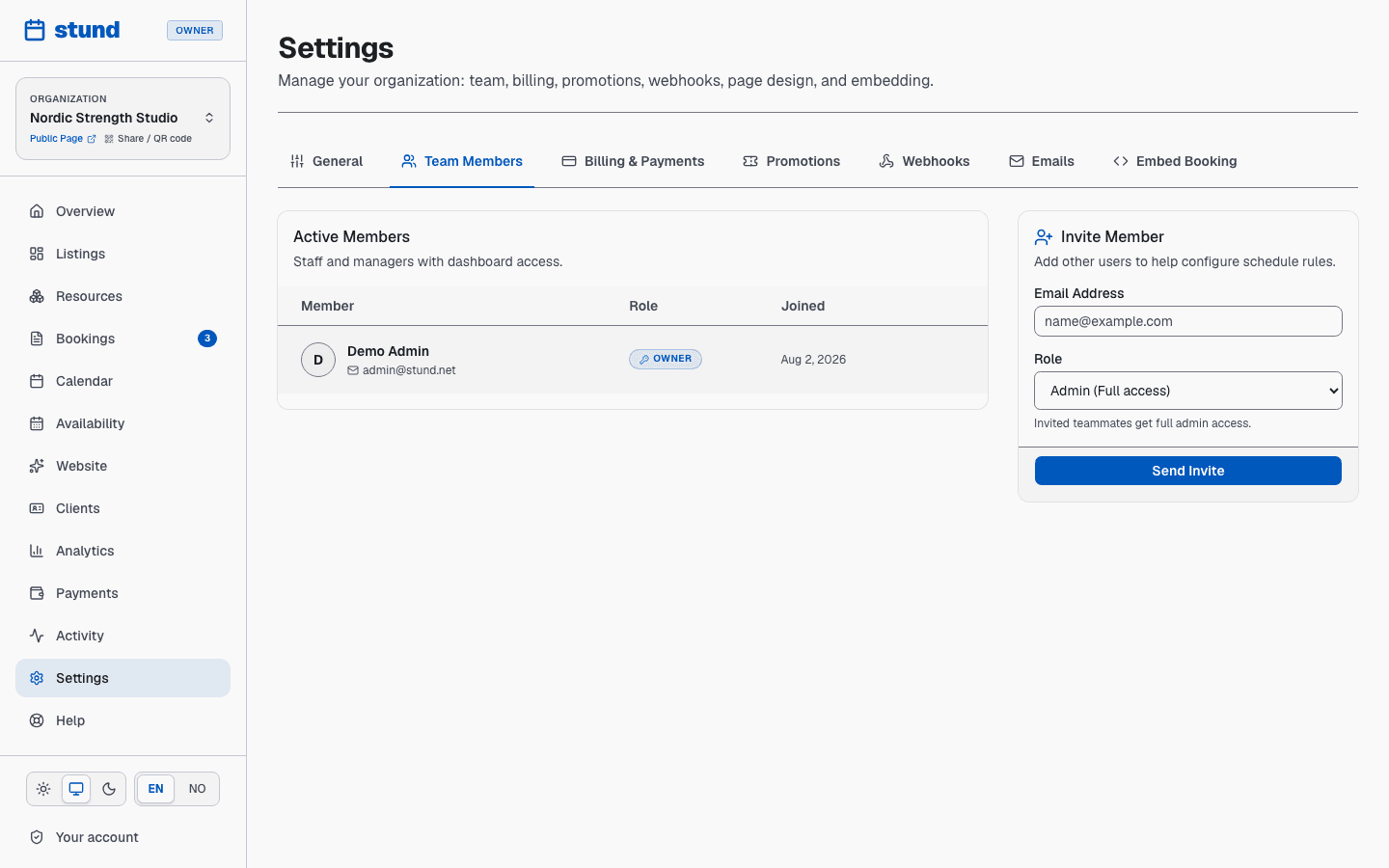
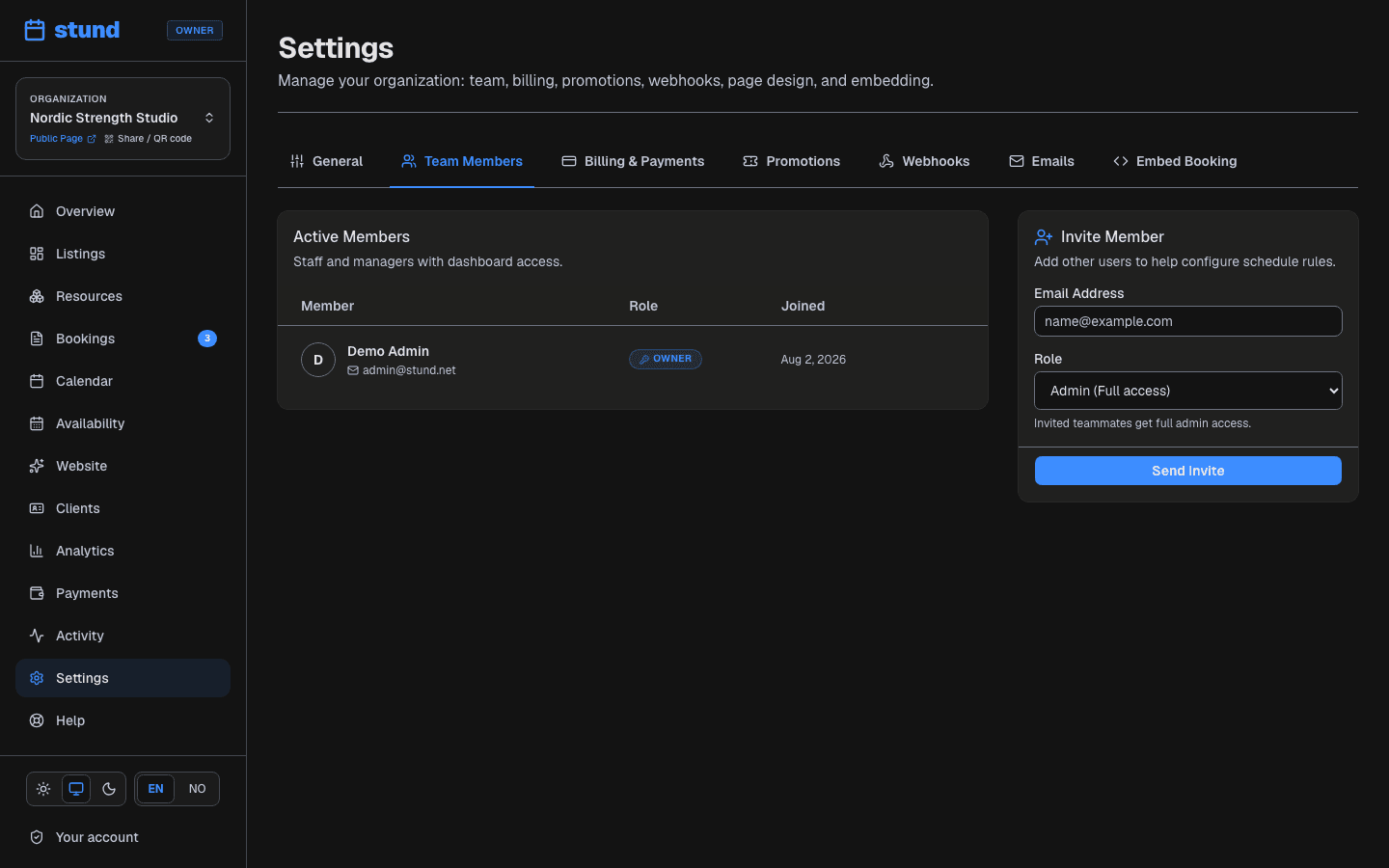
Inviting team members
Heads up
A team needs the Growth or Scale plan. On Free the organization is just you — the invite form is there, but sending one comes back refused, so upgrade under Settings → Billing & Payments first. Growth covers five people in total, counting yourself; Scale is unlimited.
Only owners and admins can invite people to your team. To invite someone:
- Go to Settings → Team
- Click the "Invite Member" button
- Enter their email address
- Pick their role: Member for someone who only needs to manage their own coach schedule, or Admin for a co-coach you'd trust with your payments, your client register and your settings
- If inviting a Member, optionally check which coach(es) they should manage right away
- Click "Send Invite"
An invitation email goes out to them with a secure link. They can accept it and join your team even if they don't have a Stund account yet — they'll create one as part of accepting the invitation.
Sending the invitation adds them to your team right away — they'll appear in your Active Members list immediately. If the invitation email doesn't arrive, don't invite the same address again (you'll be told they're already a member). Instead, ask them to log in or sign up on Stund with the invited email address — your business will already be waiting for them there.
Heads up
Admin gives full access to bookings, client details, payments and settings — everything an owner has except billing and the organization itself. Use Member with assigned coaches for a trainer who runs their own bookings and clients.
Changing someone's role
Open Settings → Team and pick a new role from the dropdown beside a member. Only the organization owner can change roles, and only between Admin and Member.
The owner's own role can't be changed here — handing over an organization is a bigger step than a dropdown, so contact support if you need to transfer ownership. You also can't change your own role, which stops an owner from accidentally locking themselves out.
Invitations that haven't been accepted
An invitation shows as Invite pending until that person opens your dashboard for the first time. The link in their invitation email takes them straight there once they sign in, whether they create a new account or log into one they already have — any sign-in method works. If the email went missing, use the send button beside their name to issue the link again — you don't need to remove and re-invite them.
Removing team members
Only the owner can remove team members. If a coach moves on or an assistant stops working with you:
- Go to Settings → Team
- Find the person in the Active Members list
- Click the delete icon (trash can) at the end of their row
- Confirm the removal
Once removed, they lose access to the dashboard immediately but keep their own account and any bookings made under their email.
Multiple businesses
You can belong to multiple businesses on Stund and switch between them. Each one is separate — the team, clients, coaches, and settings for one don't appear in another. To switch, look for the business switcher in the top navigation or sidebar of the dashboard.
Seeing what your team has done
The Activity tab on the Analytics page is a read-only log of everything that has happened in your organization: booking changes with who made them, every email and SMS with whether it arrived, and any outbound webhooks. Filter by source or by time window.
It is assembled from records the system already keeps, so nothing there can be edited or deleted — including by you. That is the point of an audit log.
Account security
Your own account security keeps your business safe. Here's how to strengthen your login:
- Passkeys — The most secure option. A passkey is stored on your device (phone, laptop, or security key) and lets you sign in without remembering a password. Stund prompts you to add a passkey when you first log in.
- Email codes — A one-time code sent to your email each time you sign in. It's quick and works from any device.
- Magic links — A secure link sent to your email. Click it to sign in without typing a password.
You can choose which method to use each time you log in, or set up multiple methods as backups. Passkeys are recommended if your device supports them — they're faster and more secure than codes or links.
Tip
Add a passkey on your phone as well as your laptop. If one device is lost you can still get into your dashboard.