Your client list
The Clients page shows every person who has made a booking or purchase with you. For each client, you can see their name, email address, phone number (if they provided one), and when they first booked with you. This list helps you keep track of your client relationships and reach out when needed.
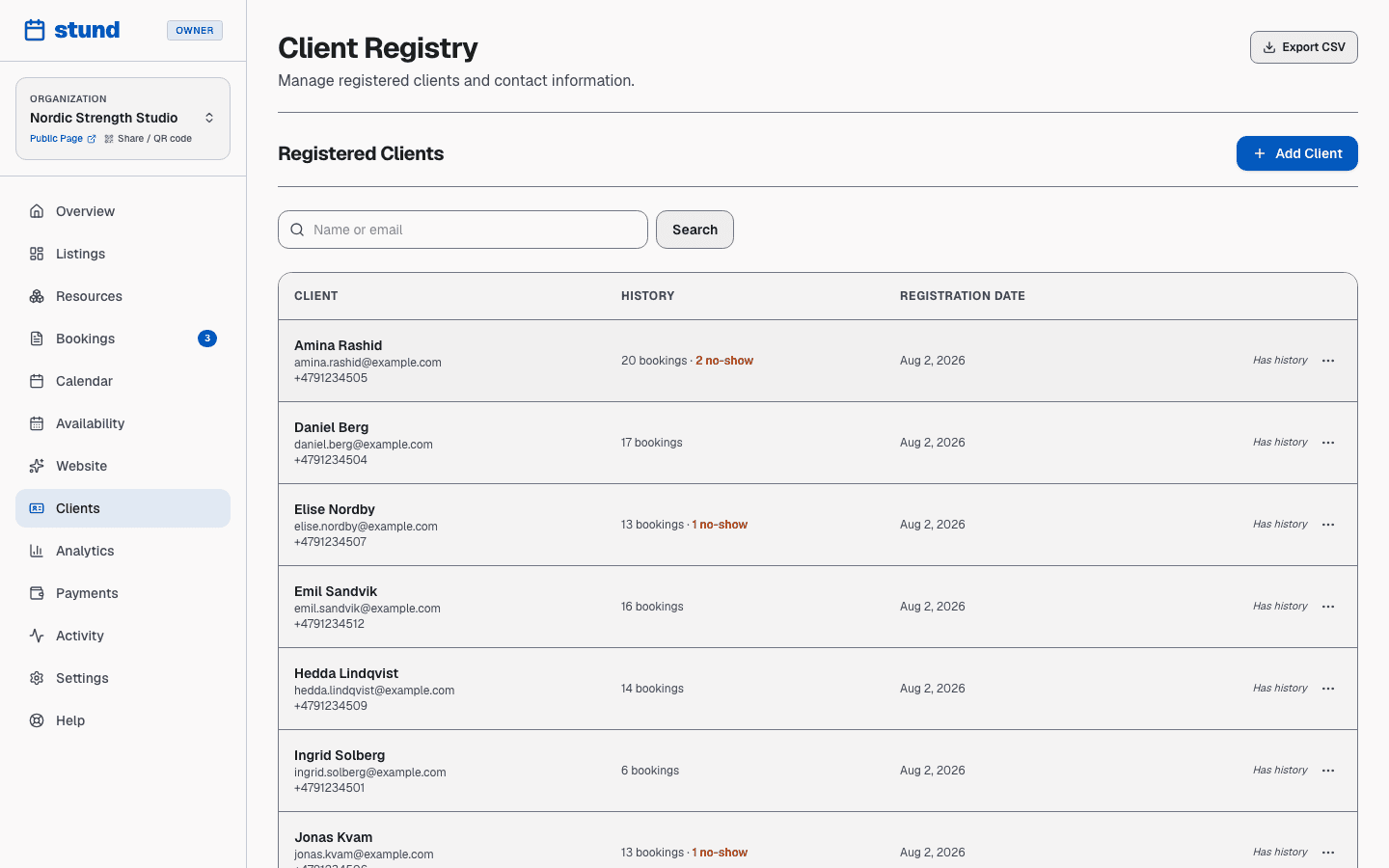
Clients don't create password accounts — they sign in with a magic link sent to their email. This keeps booking simple for them and means you don't manage their passwords.
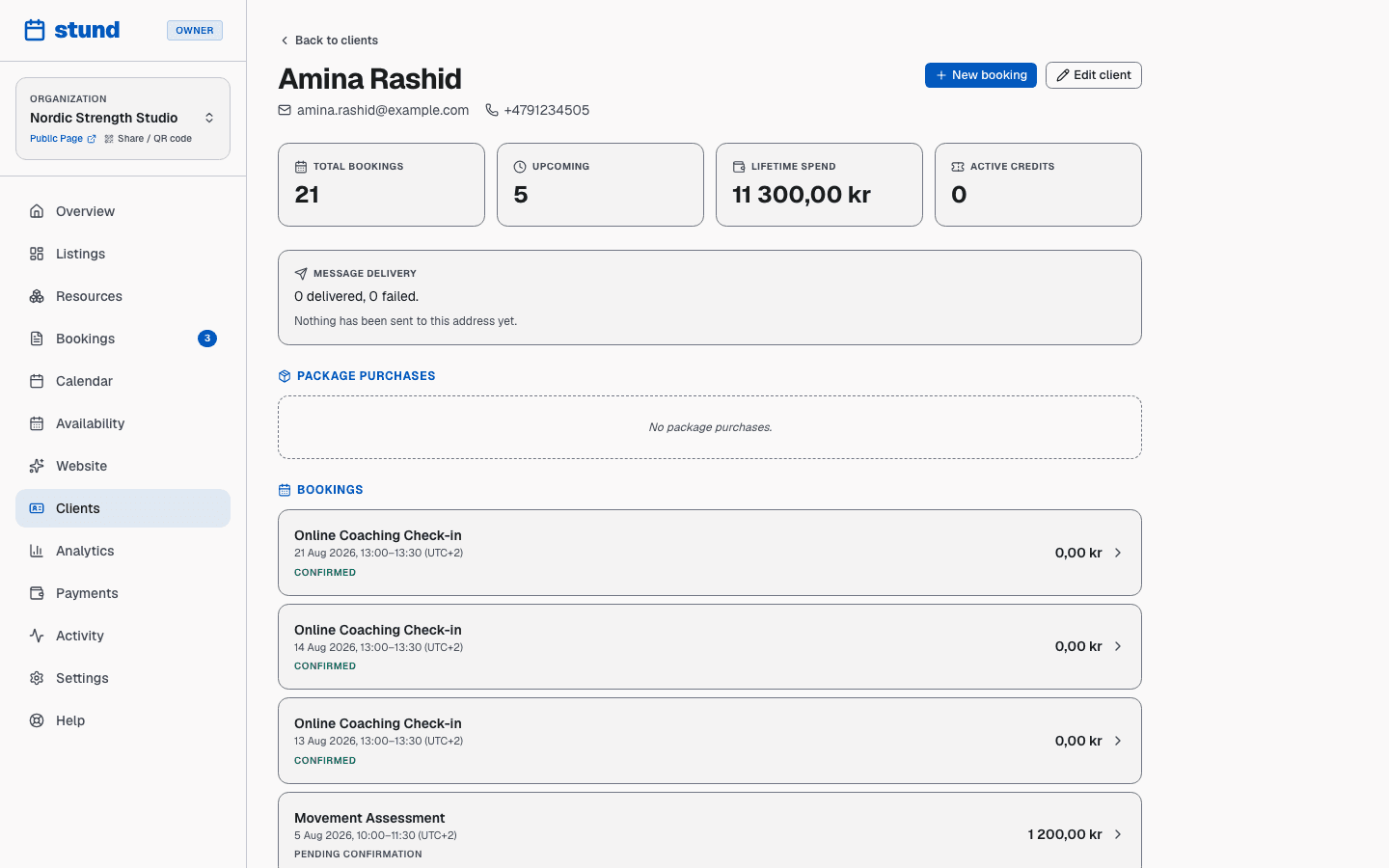
Open any client to see their full booking history, what they have paid, and any packages they hold.
Editing a client, and private notes
Open a client and choose Edit client to correct a name, fix a typo'd email address or add a phone number. Changing the email address re-keys the client record — future bookings made with the new address will attach to this client. You can edit from the client list or from the client's own page.
Every client also has a private note. Use it for the things you need to remember but would never send: a gate code, an allergy, why you waived a fee last time. Only your team sees it — it appears on the client's page and is never shown to the client or included in an email.
New booking on a client's page opens the manual booking form with that client already filled in.
A client's page shows their most recent bookings rather than every one they have ever made; the bookings inbox has the full history, and the totals at the top of the page always count everything.
Did my message actually arrive?
When a client says they never received a confirmation, you can check directly in their Conversation & activity timeline on their client page (or in the booking details). Each attempt shows what was sent, when, and its delivery status:
- Sent (or Delivered) — your email or SMS service accepted it. If the client still can't find an email, ask them to check their spam folder.
- Failed — delivery was rejected, and the reason is shown (a full mailbox, an invalid address or phone number).
- Not sent — no email provider is connected yet, so the message was never dispatched. Connect one under Settings → Emails.
If a confirmation went missing, you can send it again: open the booking and choose Re-send confirmation. The new attempt appears in the timeline alongside the original.
Every automated notification and direct message lines up together in the client's conversation timeline — see the Messages and conversations help article for the full picture and how to send messages.
Reminder timing
Under Settings → Notifications you choose when the booking reminder goes out — anything from an hour to three days ahead — and whether to send a second, closer one. You might remind clients two hours before a session so they don't forget; a first consultation could get a reminder a day ahead so they can plan their travel.
The second reminder must be closer to the booking than the first. Turning reminders off stops both.
Exporting your client list
The Clients page has an Export CSV button. The file contains every client with their contact details, how many bookings and packages they have, what they have paid in total, and your private note — ready for your accountant or a mailing tool.
Automatic notifications
When bookings move through their lifecycle, your clients automatically receive emails at each step:
- Request received — when they submit a new booking request
- Confirmed — when you approve their booking
- Declined — if you decline their booking
- Cancelled — if the booking is cancelled (whether by them or you)
- Payment received — when a payment goes through successfully
- Payment failed — if a charge doesn't go through
- Refund issued — when money is returned to them
- Reminder — advance notice before their session starts
These emails go out automatically, so you don't have to send each one manually.
Customizing your booking emails
On paid plans (Growth and Scale), you can rewrite the emails your clients receive and wrap them in your own branding. Go to Settings → Email templates.
These automatic emails are customizable:
- Request received
- Confirmed
- Declined
- Cancelled
- Rescheduled
- Reminder
- Payment received
- Booking portal link — the secure sign-in link a client requests to view and manage their bookings
Templates are grouped by purpose — booking lifecycle, payments and refunds, packages, and invitations — and each one opens its editor when you click it.
For each one you can edit the subject and body in both English and Norwegian, independently. Turn on Use custom text for this email to send your own wording; leave it off and Stund sends its polished default. Reset to default restores the original text at any time.
To keep the details accurate, you insert placeholders (shown as chips) that fill in automatically when the email is sent — the client's name, the session name, booking date and time, your business name, and, depending on the email, the payment status, amount, or your note to the client. Each email only offers the placeholders that make sense for it. A live preview shows exactly how the message will look, with sample values, before you save.
Some placeholders are required and can't be removed. The request-received, confirmed, payment-received and rescheduled emails carry a Manage or cancel link (the manageUrl placeholder) — a secure, single-use link unique to that booking that lets the client cancel in one click straight from their email. If you rewrite one of these, keep that placeholder; without it the client has to request a sign-in link before they can cancel. The same applies to the pay link and the portal sign-in link on the emails that use them.
Every email is sent as a branded HTML message using your logo, accent color, and a signature with your name and contact email — all drawn from your existing branding settings. The sender name shows your business, and replies go to your contact email. (A plain-text version is always included as a fallback.)
The other system emails — payment-failed and refund notices to clients, alerts to you and your team, and payment-processor messages — always use Stund's standard wording and aren't affected by these settings.
Tip
Edit the confirmation email first — it is the one clients read most closely. Adding where to park or which door to use saves you the same question every week.
Email guidelines for replies
You can set email guidelines — a short note about your communication style that steers the AI when drafting replies to client messages. For example, you might say "Keep a warm, motivating tone" or "Sign off with just my first name." These guidelines appear only when the AI is helping draft a response; they don't affect booking notifications.
SMS notifications
SMS texts can reach clients faster than email — handy for session reminders. Enable them under Settings → Notifications. Plans include different SMS limits (Free tier has none; Growth tier includes 250 per month; Scale tier includes 2,000 per month). When you hit your limit, emails still go out — SMS just stops until your next billing month. Texts are only sent to clients who provided a phone number, and only for their own bookings (not admin alerts to you).
What clients can do
Clients have a few self-service options after booking:
- Pay online — if the session requires payment, they can pay from a secure link
- View confirmation — they can see all booking details (date, time, location, price) on a confirmation page
- Add to calendar — they can add the session to Google Calendar or download it as an .ics file to import into their calendar app
- Cancel — depending on your cancellation policy, they may be able to cancel within a certain window before the session starts
All of these options are available via email links, so clients don't need to sign in again to manage their booking.