How booking requests arrive
When a client books a session on your public booking page, they submit a booking request. The request initially sits in Pending status. What happens next depends on your approval settings.
All your booking requests arrive in the Bookings section of your dashboard. You'll see the client's name, contact details, the session and time slot they want, and any answers they gave to your questions during booking.
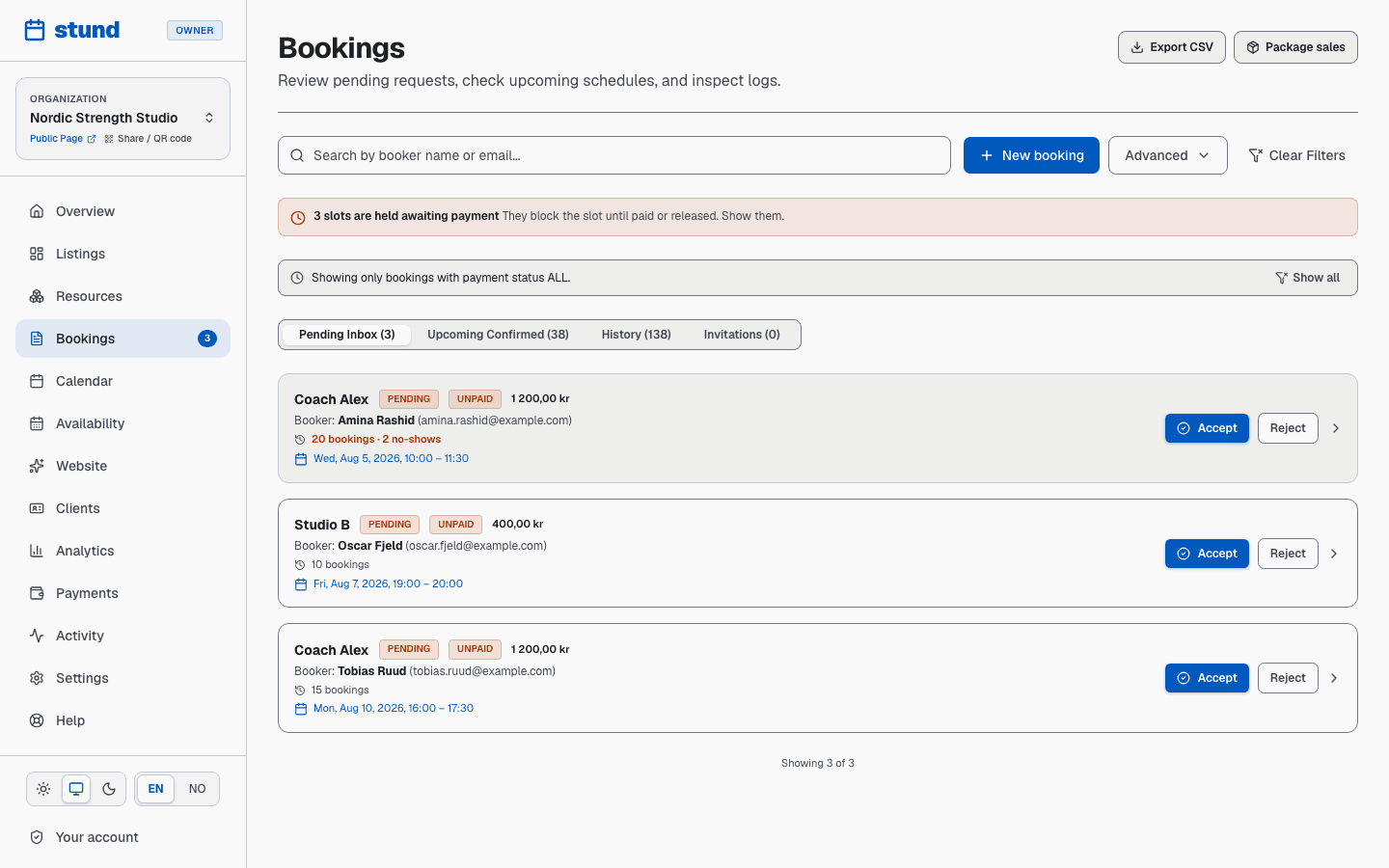
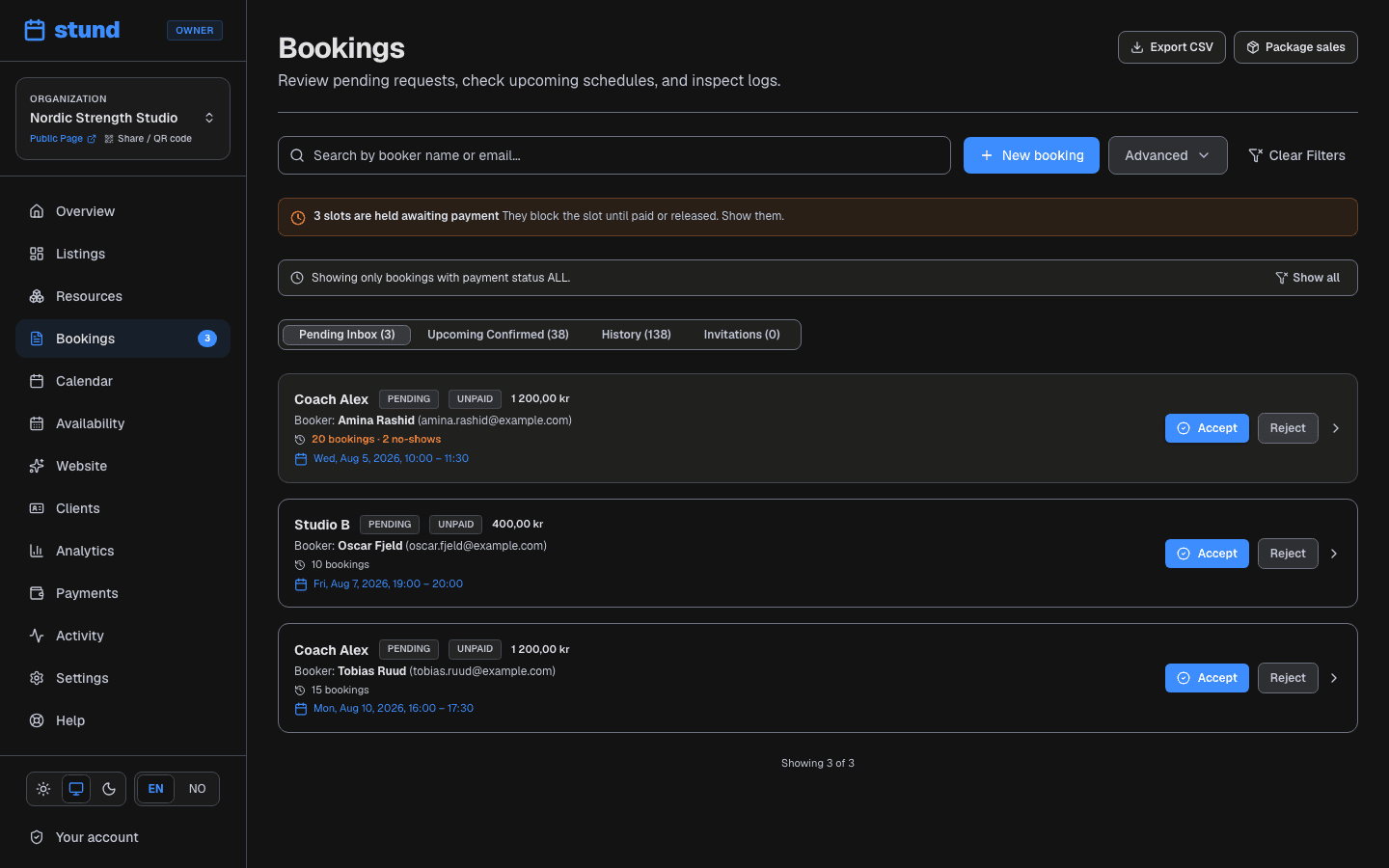
If a session requires payment, the booking will show a payment status. Even while pending approval, the slot is held — if the client doesn't complete payment within about 45 minutes, the hold expires and the slot is released for others to book. This prevents unpaid bookings from locking up your calendar indefinitely.
Manual approval vs. automatic confirmation
Your approval workflow is set per service. Go to your service settings and choose one of two modes:
Manual approval — every request waits for you to review it. You have time to check the client's details, read any notes they left, and either approve or politely decline. This suits 1-on-1 coaching, where you want to vet new clients or make sure a request fits your program.
Automatic confirmation — requests are approved instantly and the client receives a confirmation email right away. Useful for high-volume, low-touch bookings like open group classes or recurring sessions with regulars, where almost every request is acceptable.
Tip
You can mix the two: manual approval on your 1-on-1 services, auto-confirm on group classes.
Booking statuses explained
Throughout its lifecycle, a booking moves through different statuses. Here's what you'll see in your dashboard:
Pending — the request was just submitted. If it requires payment, the slot is held while the client completes checkout. The booking won't move forward until either you approve it or the payment times out (about 45 minutes).
Accepted — you approved the request (or it auto-confirmed). The client receives a confirmation email and the time slot is now locked in — it won't be offered to anyone else. About 24 hours before the session, they'll receive a reminder.
Rejected — you declined the request. The slot is immediately available again for other clients. You can include a note (visible only to you, or shared with the client) explaining why.
Cancelled by client — the client asked to cancel. Depending on how close the date is and your refund policy, you may refund part or all of their payment. Your cancellation window (e.g., 24 hours) is set on your service — if they cancel within that window, they may get a refund; after the window closes, it's a non-refundable cancellation.
Cancelled by admin — you (or a team member) cancelled the booking. You can add an internal note for your records and optionally send a message to the client.
Expired — the booking was unpaid and sat pending for too long. The slot was automatically released and the client can book again if they'd like.
No-show — the session time passed and the client never showed up. Payment is retained (no refund on a no-show unless your policy allows otherwise).
Payment holds and unpaid bookings
If you charge for sessions, a client's first step is to complete payment via Mollie. Until they do, their booking sits in a "requires payment" state and holds the slot for them.
If the client abandons the checkout, leaves the payment page open but doesn't finish, or their card is declined, the booking holds the slot for about 45 minutes before it's automatically released. This gives them time to retry if their payment failed, but frees up the slot if they simply changed their mind.
Once payment is complete, the status changes to paid and the booking moves to your approval queue (if you use manual approval) or to accepted (if you use auto-confirm). Either way, the slot is now properly reserved.
Approving and declining bookings
In your Bookings list, click any pending request to open its details. Here you can:
- Review the client's name, email, phone, and any custom answers they provided
- See the exact time slot and session
- Approve or decline the request
When you approve, the client immediately gets a confirmation email (or reminder, if auto-confirm already sent one).
When you decline, you can add a short public note (sent to the client in the decline email) and an internal note (for your eyes only). Stund even suggests reply templates based on the booking details, so you're not writing a custom decline email each time — just pick a template and tweak it if needed.
You are done
Approving is one click from the inbox list — you only need to open a request when you want to read the details first.
Cancellations and refunds
If a client asks to cancel, they can do so from their booking confirmation email or from your booking page. The cancellation window is set on your service — typically 24 hours before the session starts.
Inside the window — they can cancel, and you may issue a refund (or partial refund) based on your refund policy. Your policy is set as a percentage: 100% means they get all their money back; 50% means they lose half; 0% means no refund.
After the window — late cancellations are non-refundable by default. You can still manually refund if you choose.
Heads up
Refunds are issued through the payment provider and can take a few days to reach the client's account, even though Stund marks them refunded right away.
If you cancel a booking (e.g., you fall ill or double-booked by mistake), the client receives a cancellation notice. You can add a message explaining the situation — for example, "I'm unwell today and have to cancel our session. Here's a link to reschedule."
Recurring bookings and multi-slot reservations
When a client books multiple time slots in one go (back-to-back sessions, or weekly coaching over 8 weeks), Stund links them together as a booking group. While each slot is its own booking record for audit purposes, they share a parent-child relationship.
This matters for payments — if they pay once for a multi-slot series, all slots in the group charge to the same payment and share a deposit. And if they cancel one slot, you can choose to refund just that slot or the whole series.
Exporting your bookings
The Bookings page has an Export CSV button. It downloads every booking you have ever taken — not just the page in front of you — with times in your organization's timezone, the client's details, the status, what was paid and any refund. This is the file to hand your accountant.
Recording attendance
Open a confirmed booking and choose Check in when the client arrives. The booking keeps its confirmed status — check-in is a separate record, not a status change, so a checked-in booking can still be cancelled if plans change.
This is the counterpart to No-show, which you use when someone doesn't turn up. Between them you have both halves of attendance; a booking with neither simply means you didn't record it.
Adding a note to a booking
Any booking can carry an internal note: Add an internal note at the bottom of its detail panel. Use it for things like "phoned, running late" or "waived the late fee, see email". Notes go into the booking's audit trail with your name and the time, and only your team ever sees them.
Re-sending a confirmation
If a client can't find their confirmation, open the booking and choose Re-send confirmation. It sends the same email again and records the new attempt, so you can see both in Message delivery on the same panel.
Booking history and audit trail
Every action on a booking — creation, approval, payment, cancellation, refund — is recorded in the booking's event history. Click "History" or "Events" on any booking to see a timestamped log of every change.
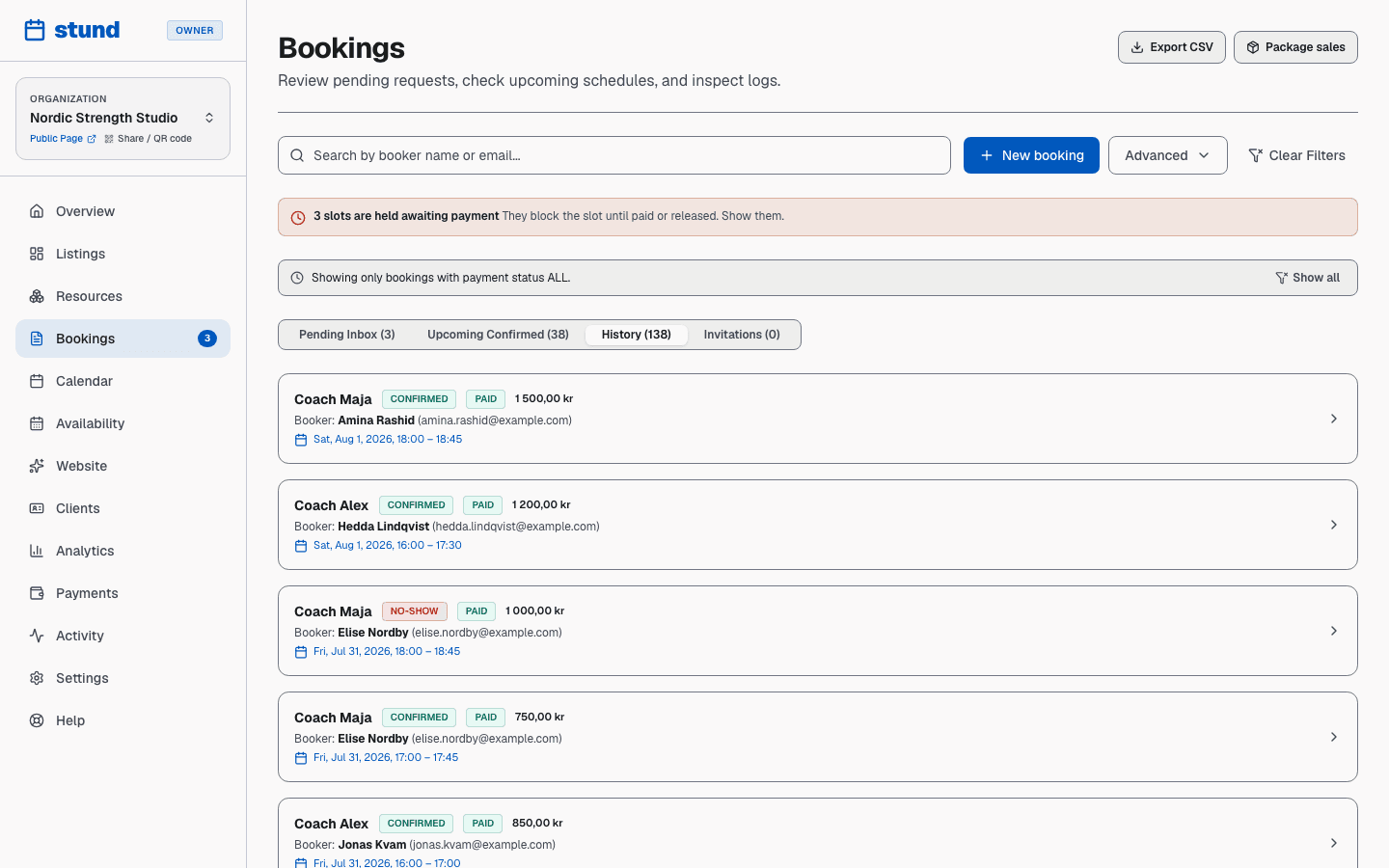
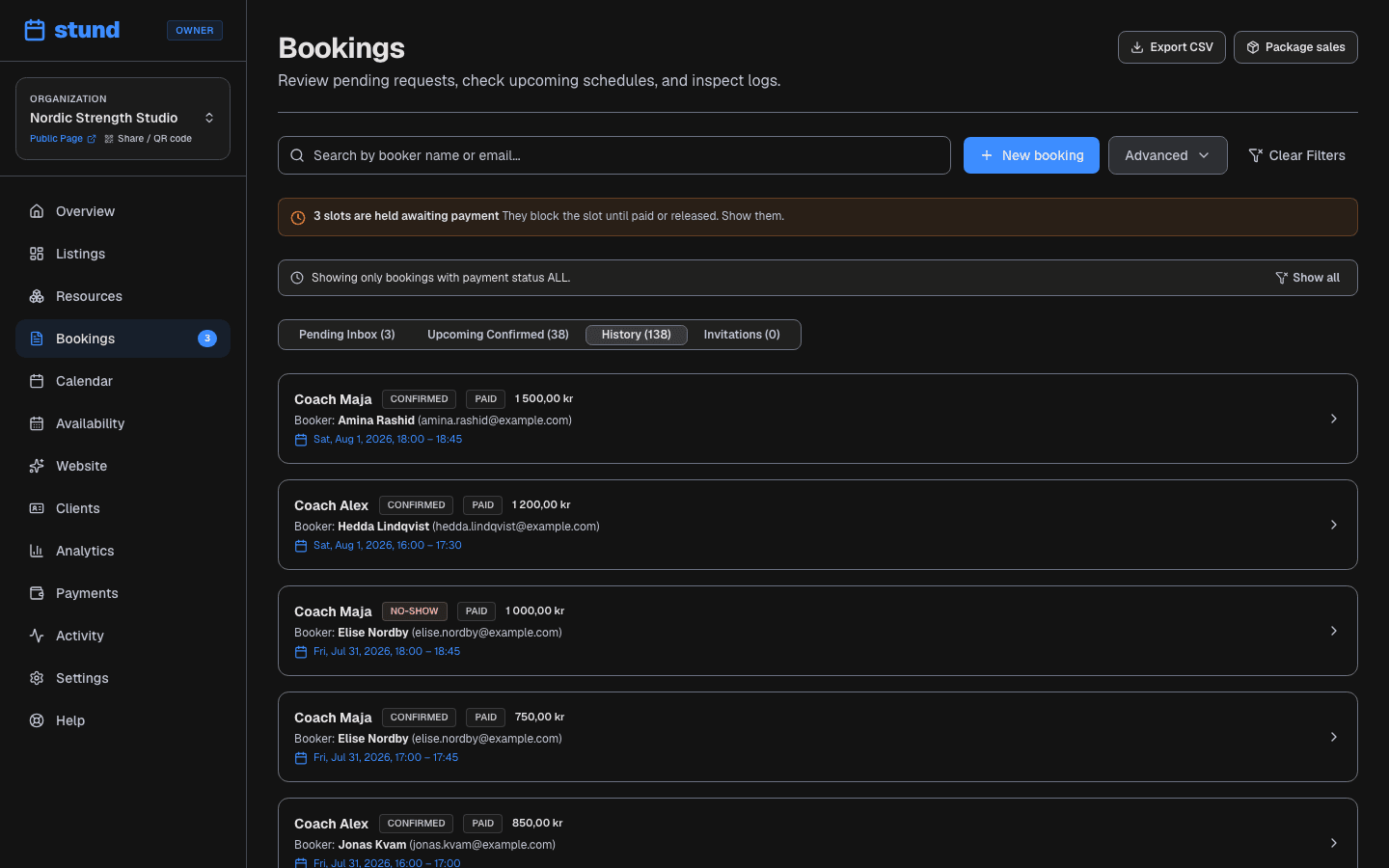
The history shows who made each change (if a team member), what changed (status, payment, notes), and when. This is invaluable for disputes — if a client claims they cancelled in time, the event history shows exactly when they did (or didn't).
Reminders
About 24 hours before an accepted booking starts, Stund automatically sends the client a reminder email (and SMS, if they provided a phone number and you have SMS enabled). The reminder includes the session name, date, time, and your business name — just enough info for them to show up prepared.
Reminders are sent only once per booking. If the client never receives it due to an email provider filter or network issue, it won't retry, but the failure is logged internally so it can be investigated if needed.
Inviting clients and manual bookings
You can also create bookings on behalf of clients. Visit Bookings → New Booking to enter a client's details, choose a time, and create the booking. This is useful when a client texts or calls you to book, or prefers not to use the self-service page.
Start typing in Search / choose existing client to find someone already on file — it searches names and email addresses as you type, so it works no matter how long your client list is. Choose Create a new client for someone new. Opening this form from a client's own page fills them in for you.
Once you pick a date, Open times that day shows what is actually free for that coach: select one and the start and end times fill in. You can still type any time you like — a booking agreed over the phone is sometimes deliberately outside your published hours — and if the time you enter isn't in the published availability, the form says so and creates the booking anyway.
The Payment & pricing options section is always visible in the form. Here you can adjust the price or discount if needed, or redeem a customer's prepaid package credit. The Payment handling selector explicitly defaults to the service's payment setup (such as emailing a secure online payment link or expecting payment upon arrival). You can also override it to mark the booking as already paid, offline payment, or no payment required — which confirms the booking immediately without sending a payment request.
The Create booking button has a dropdown next to it that lets you choose whether the client is told about the booking. Create booking and inform client (the default) sends the usual confirmation — or, for an online-payment session, a payment link. Create booking without informing client creates the booking silently: no email or SMS goes out. Use the quiet option when the client already paid you in person, when you've agreed the details over the phone, or when the session is free and no confirmation is needed. Note that a quiet online-payment booking still waits for payment — it isn't confirmed until the client pays — so you'll normally use the quiet option together with marking the booking as paid, offline payment, or no payment needed.
You can also invite a client by email. Send them a link with a special code, optionally including a discount. When they click the link, it pre-fills their email and takes them straight to checkout (or confirmation if the session is free). The invite is single-use and expires after a set period.