Availability and scheduling

Set your weekly working hours, configure per-coach availability, block out vacations, and manage recurring schedules.

5 min read

Setting your hours

Start in Availability in your dashboard. This is where you define when you're open for bookings. You can set general working hours that apply to all your coaches, or customize hours for specific ones.

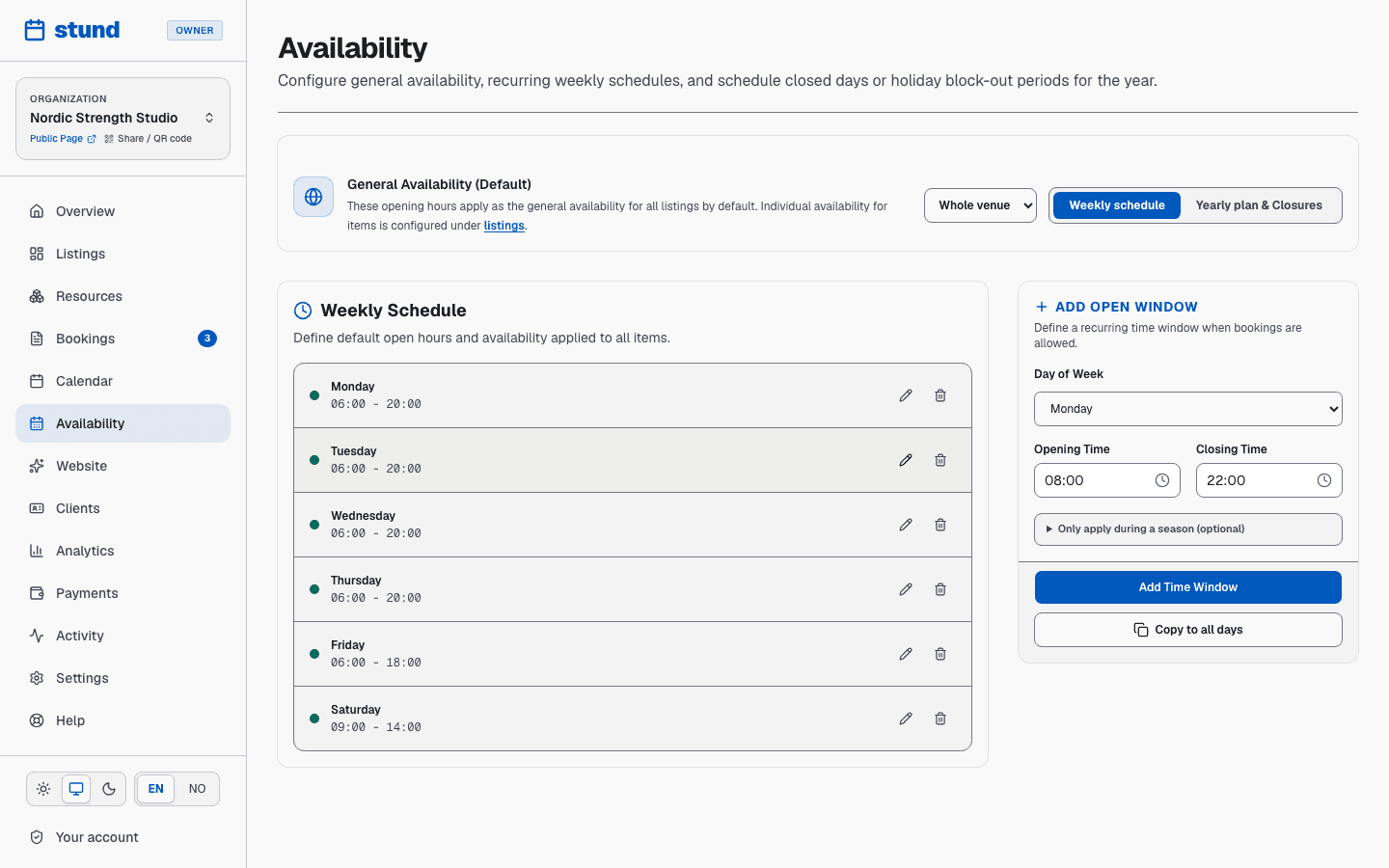
Business-wide hours apply to every coach that hasn't got hours of their own. If you take clients Monday to Friday 7am–5pm, you set this once, with Whole venue selected. Coaches inherit those hours automatically.

Hours for a single coach let you make exceptions. Maybe you take 1-on-1 sessions until 5pm, but a colleague coach on your team takes evening clients until 9pm. There's no switch to flip for this — use the Whose availability to edit dropdown at the top of the page, pick the coach, and give them their own week.

stund.net
The Availability page with weekly opening hours per weekday and a list of blocked dates.
Weekly hours set the pattern; date exceptions handle the holidays, courses and one-off closures.

How availability rules work

Your hours are broken into weekly rules — you define a start and end time for each day of the week (Monday, Tuesday, etc.). Stund uses your business's timezone, so all the slots clients see follow your local time, not theirs.

When you offer a 2-hour small-group session every Tuesday 5–7pm, a client in another timezone still sees that session at the correct converted time in their local zone.

Whole venue, or one coach. The dropdown at the top of Availability decides whose hours you are editing. Whole venue hours apply to every coach that hasn't got their own; pick a coach and they get their own week, which overrides the venue's hours on the days it defines. A coach with no hours of their own — and no venue hours to fall back on — takes no bookings.

A weekly rule is the only way to say when you are open. There is no per-date version of it, so a single Saturday can't be given its own extra morning hours: you would have to widen the weekly rule and put it back afterwards. Closing a single date, on the other hand, takes two clicks — see below.

Blocking time off: vacations and closures

Everything to do with specific dates lives on the second tab of Availability, Yearly plan & Closures. It shows a month at a time, with each day marked open or closed.

  • One date. Click the day in the calendar, type a reason, and choose Block Entire Day. The day turns red with your reason on it, and Remove Closure on the same panel undoes it.
  • A period, or part of a day. Use Block Date Range below the calendar: a start and end date, a start and end time, and a reason. Leave the times at 00:00–23:59 for whole days, or narrow them to close just an afternoon.

Clients cannot book inside a closure — those slots disappear from the booking page. The reason is for you and your team, never shown to clients: "Summer break", "Certification course", "Away at a seminar".

A closure follows the same scope as your hours. With Whole venue selected it closes everything; with a single coach selected it closes only that one, unless you tick Apply to all listings. So you can close your own calendar for a week while a colleague coach stays bookable.

Every closure you have is listed under the calendar, so you can check what is in force and delete anything you no longer need.

Heads up

Blocking time does not cancel bookings that are already confirmed in that window. Check Bookings and reschedule them yourself.

Buffers and booking constraints

Fine-tune how slots are generated for your clients with a few key settings:

Minimum notice — require clients to book at least (for example) 24 hours in advance. This prevents last-minute surprises and gives you time to plan the session.

Maximum advance booking — limit how far in the future clients can reserve, e.g., "bookings open only 3 months out." Useful when you don't want to commit your calendar too far ahead.

Booking interval — the gap between available slot start times. If set to 30 minutes, slots might start at 8:00, 8:30, 9:00, etc. A 1-hour interval offers fewer, larger slots.

Buffers before/after — the time you need between sessions to reset, write notes, or travel between locations. If you set a 15-minute buffer after each session, a booking ending at 5pm actually blocks the slot until 5:15pm. Buffers shrink what clients see as available but don't affect the actual session length.

Tip

These settings live on each listing, not on your general hours. Open a listing: Buffer Before, Buffer After, Min Notice and Max Advance are all under Advanced Rules, while the interval step is under How Bookings Work — and that one only appears on listings where the client picks their own duration.

Session lengths

Most coaching is booked by the hour or in set-length time slots — a 30-minute check-in, a 60-minute 1-on-1, a 90-minute assessment. You decide on each listing whether clients pick their own duration or book a fixed block.

Whatever length you choose, your opening hours still control whether a slot is offered at all: a session can only start inside an open weekly rule, and never inside a closure.

Your hours on your booking page

The Opening hours shown on your public booking page come straight from the weekly schedule you set here — you never type them in twice. Change your hours in Availability and the page updates to match, so the two can never drift apart. In the page designer you can still add a short note (for example "Closed on public holidays") and hide the whole Opening hours block if you'd rather not show it.

If you work solo, there's nothing extra to set up: you have one schedule, and the per-coach dropdown only appears once you add a second coach or resource. That keeps a one-person business from setting the same hours in more than one place.

Timezone awareness

All availability settings are stored and calculated in your business's timezone, chosen in your account settings. Even when a client is in another country, they see available slots in their own local time, and Stund handles the conversion seamlessly. You always see times in your local timezone.

Heads up

Set your timezone before you publish. Changing it later shifts how every existing rule is interpreted.

Keep reading

Ready to try Stund?

Set up your organization and take your first booking in minutes.

Start for free